






Basic Computer and MS Office
Practical 1.5-month computer training covering Windows 11, MS Word, Excel & PowerPoint, plus Google Workspace collaboration, AI productivity tools, internet & email, and Nepali typing.
Rs. 8,000
Rs. 12,000Access
mobile and TV
Completion
Course Overview
Computer basics & Microsoft Office Package
Computer basic MS Office Package (MS Word, MS Excel, MS PowerPoint, Nepali Typing, and Email & Internet) Training in Kathmandu, Nepal
Course Overview
Mystic Academy Nepal has designed this Microsoft Office Training Course for professionals who handle day-to-day office tasks using essential office software, including Word, Excel, and PowerPoint. Unlike other computer training institutes in Kathmandu, we focus on building confidence and practical skills in Microsoft Office programs.
Microsoft Word Training helps you master word processing and create professional documents with ease. Microsoft Excel Training equips you to manage calculations, data entry, and data analysis efficiently. Microsoft PowerPoint Training guides you in designing impactful slides and presentations for meetings, seminars, and workshops.
Take the leap into a creative career and start designing visuals that impress, influence, and inspire!
Your Learning Journey
Our curriculum is researched, developed & updated by understanding the global scope & job demands. Conducted by industry-leading expert instructors, the program offers more than 85% of an in-depth practical approach backed by essential theoretical frameworks.
Skills you’ll learn
Computer Fundamentals: Know hardware, software, operating systems, and basic file management (create, copy, delete, and organize files).
Windows OS Essentials: Explore the Windows desktop, taskbar, system settings, control panel, and user accounts.
Word Processing (MS Word): Prepare, format, and edit documents. Use styles, headers/footers, lists, tables, images, and mail merge.
Spreadsheet Skills (MS Excel): Enter data and format it; use formulae and functions; sort and filter; create tables and charts; and apply basic data analysis tools.
Presentation basic (MS PowerPoint): Create presentation slides, templates, and themes, insert text, images, and graphs, and add transitions and animations.
Practical 1.5-month computer training covering Windows 11, MS Word, Excel & PowerPoint, plus Google Workspace collaboration, AI productivity tools, internet & email, and Nepali typing.
Your Learning Journey
Our curriculum is researched, developed & updated by understanding the global scope & job demands. Conducted by industry-leading expert instructors, the program offers more than 85% of an in-depth practical approach backed by essential theoretical frameworks.
Everything You Receive
Live classes
Live classes and streaming
Recorded Videos
Get our streamed video
Certificate
Verified
Internship
Real-world experience
Course Curriculum
- Introduction to types of basic devices
- Introduction to Microsoft Word, Excel and Powerpoint
- Introduction to the Windows Environment
- Creating folders and managing folder structure to store files in order
- Searching and opening files
- Setting user privileges as per the users
- Installing/setting applications and uninstalling applications
- Configuring devices and installing device drivers
- Virus and security threats; virus scanning and cleaning to avoid threats
- Creating backups of files
- Setting printing options before sending print commands
- Writing files to removable drives, CD, or DVD using related software
- Create and format text
- Copy and paste; copy format and paste format
- Develop headings and create formats in different styles
- Creating styles and formatting documents
- Find the desired text and replace it with new text
- Inserting pictures, formatting pictures, adjusting color, and arranging pictures
- Inserting clipart, SmartArts, and graphs
- Creating hyperlinks and adding comments
- Working with header, footer, textbox, equation, and symbols
- Working with page design and layout
- Creating Table of Contents, footnotes, endnotes, list of tables, and list of figures
- Creating bibliography, cross-references, and captions
- Working with comments and Track Changes
- Mail Merge
- Viewing windows in different ways and comparing files
- Setting Excel file options
- Working with text formats and number formats
- Creating tables and cell styles
- Working with conditional formatting and table formats
- Sort, filter, series fill, flash fill, and AutoSum
- Inserting pictures, SmartArt graphics, charts, hyperlinks, headers/footers, equations, and symbols
- Setting page layout, arranging shapes, and printing area setup
- Working with basic Excel formulas to perform simple calculations
- Working with logical functions, lookup, and reference functions
- Defining table names and using them in formulas
- Grouping/Ungrouping data
- Sorting records
- Working with text proofing and text editing
- Protecting sheets with passwords
- Viewing windows in different views
- Freezing panes and splitting sheets
- Data Validation(Data Validation, Create a validation rule)
- Macros(Understanding macros,Recording macros,Running and editing macros)
- Customization(Customizing the Quick Access Toolbar, Customizing the Ribbon, Connecting workbook)
- Setting the PowerPoint 2021 file environment
- Building your own slides
- Creating design and text in attractive formats
- Searching new online templates and themes
- Inserting tables, symbols, pictures, charts, and SmartArt graphics
- Inserting video, audio, and screen recordings
- Inserting background themes or templates for presentation
- Applying attractive transitions
- Applying attractive animations to designed text and objects
- Setting timing with transitions and animations
- Building up presentation and setting slideshow
- Editing text and comparing presentations
- Printing slides
- Presentation views
- Google :
- Google Docs: Real-time document collaboration, version history, and commenting features.
- Google Sheets: Sharing, analyzing data collaboratively, and advanced functions.
- Google Slides: Collaborating on presentations with shared editing and live feedback.
- Google Forms: Creating surveys, quizzes, and collecting responses through collaborative tools.
- Microsoft :
- Microsoft Word Online: Real-time collaboration on documents with editing, commenting, and version control features.
- Microsoft Excel Online: Use advanced formulas and features.
- Microsoft PowerPoint Online: Co-create presentations with live editing, comments, and shared design tools.
- Microsoft Forms: Create surveys, quizzes, and collect responses with built-in analytics for collaborative review.
- AI-Enhanced Collaboration Tools: Integrating Smart Features:
- Integrating AI to enhance productivity (e.g., smart suggestions in Google Docs and Sheets).
- Using AI-powered tools to automate routine tasks (e.g., data analysis, content generation).
- AI-assisted project management for smoother collaboration.
- Internet
- Understanding the World Wide Web
- Key concepts and terminology
- Using search engines effectively
- Connecting to the Internet
- Key concepts and terminology
- Sending up an email account
- Sending and receiving emails
- Organizing and managing email
- using email for collaboration and group communication
- Email etiquette and best practices
- Addressing and composing professional emails
- Tradition and Romanized Unicode
- Preeti
FAQs
Mystic Academy offers IT training programs in Web Development, Graphic Design, and Basic Computer & MS Office at our institute in Kathmandu. All courses are open to students, professionals, and complete beginners — no prior experience needed.
Yes. Mystic Academy in Kathmandu welcomes learners of all backgrounds — students, working professionals, and career-changers — even with zero prior IT knowledge. Our courses range from beginner to advanced levels, so there is no technical background required to get started. During the free counseling session at our Kathmandu office, our team will assess your current level, interests, and goals to help you choose the most suitable course.
The duration varies by course. Most programs at Mystic Academy in Kathmandu are designed to be completed within 1 to 3 months — making them ideal for students on a break, professionals with a busy schedule, or anyone looking to gain a job-ready skill quickly.
You can enroll at Mystic Academy by sending your details via the inquiry form above, or by visiting our office at Falfulchowk, Sorakhutteu, Kathmandu. The enrollment process is simple — fill out a form and pay the advance fee. Our team will guide you through everything from there.
Completing IT training at Mystic Academy in Kathmandu gives you practical, hands-on skills that complement further studies in Computer Science or Information Technology — and provide a direct career advantage in Nepal's growing tech industry. Whether you are a student continuing to higher education or a professional switching careers, the skills you build here translate directly to real-world results.
A certificate from Mystic Academy in Kathmandu carries real weight in Nepal's IT job market. Our certifications are verifiable and recognized by industry partners both locally and internationally. Whether you are applying for a job in Nepal or abroad, your Mystic Academy certificate validates the practical skills and real-world projects you completed during your training.
Absolutely. At Mystic Academy in Kathmandu, anyone can start learning basic IT and AI skills from scratch — no prior knowledge or technical background needed. Our instructors guide every learner step by step from the very beginning.
At Mystic Academy in Kathmandu, we recommend all new learners start with: Computer Basics, Programming fundamentals (Python is most common for AI), Basic math and logic, and Internet and digital tools. Our beginner courses in Nepal are structured to build these foundations from scratch — regardless of your age or background.
You can start with basic programming, data handling, problem solving, and understanding how AI tools work.
Technology is everywhere. IT and AI skills help anyone — regardless of age or background — get better jobs, work remotely, and build solutions for real problems. For learners in Nepal, these skills open doors to both local opportunities and international careers.
Available Batches
Coming Soon
We're currently scheduling new batches. Stay tuned!
FAQs
Mystic Academy offers IT training programs in Web Development, Graphic Design, and Basic Computer & MS Office at our institute in Kathmandu. All courses are open to students, professionals, and complete beginners — no prior experience needed.
Yes. Mystic Academy in Kathmandu welcomes learners of all backgrounds — students, working professionals, and career-changers — even with zero prior IT knowledge. Our courses range from beginner to advanced levels, so there is no technical background required to get started. During the free counseling session at our Kathmandu office, our team will assess your current level, interests, and goals to help you choose the most suitable course.
The duration varies by course. Most programs at Mystic Academy in Kathmandu are designed to be completed within 1 to 3 months — making them ideal for students on a break, professionals with a busy schedule, or anyone looking to gain a job-ready skill quickly.
You can enroll at Mystic Academy by sending your details via the inquiry form above, or by visiting our office at Falfulchowk, Sorakhutteu, Kathmandu. The enrollment process is simple — fill out a form and pay the advance fee. Our team will guide you through everything from there.
Completing IT training at Mystic Academy in Kathmandu gives you practical, hands-on skills that complement further studies in Computer Science or Information Technology — and provide a direct career advantage in Nepal's growing tech industry. Whether you are a student continuing to higher education or a professional switching careers, the skills you build here translate directly to real-world results.
A certificate from Mystic Academy in Kathmandu carries real weight in Nepal's IT job market. Our certifications are verifiable and recognized by industry partners both locally and internationally. Whether you are applying for a job in Nepal or abroad, your Mystic Academy certificate validates the practical skills and real-world projects you completed during your training.
Absolutely. At Mystic Academy in Kathmandu, anyone can start learning basic IT and AI skills from scratch — no prior knowledge or technical background needed. Our instructors guide every learner step by step from the very beginning.
At Mystic Academy in Kathmandu, we recommend all new learners start with: Computer Basics, Programming fundamentals (Python is most common for AI), Basic math and logic, and Internet and digital tools. Our beginner courses in Nepal are structured to build these foundations from scratch — regardless of your age or background.
You can start with basic programming, data handling, problem solving, and understanding how AI tools work.
Technology is everywhere. IT and AI skills help anyone — regardless of age or background — get better jobs, work remotely, and build solutions for real problems. For learners in Nepal, these skills open doors to both local opportunities and international careers.
Available Batches
Coming Soon
We're currently scheduling new batches. Stay tuned!
Locate us
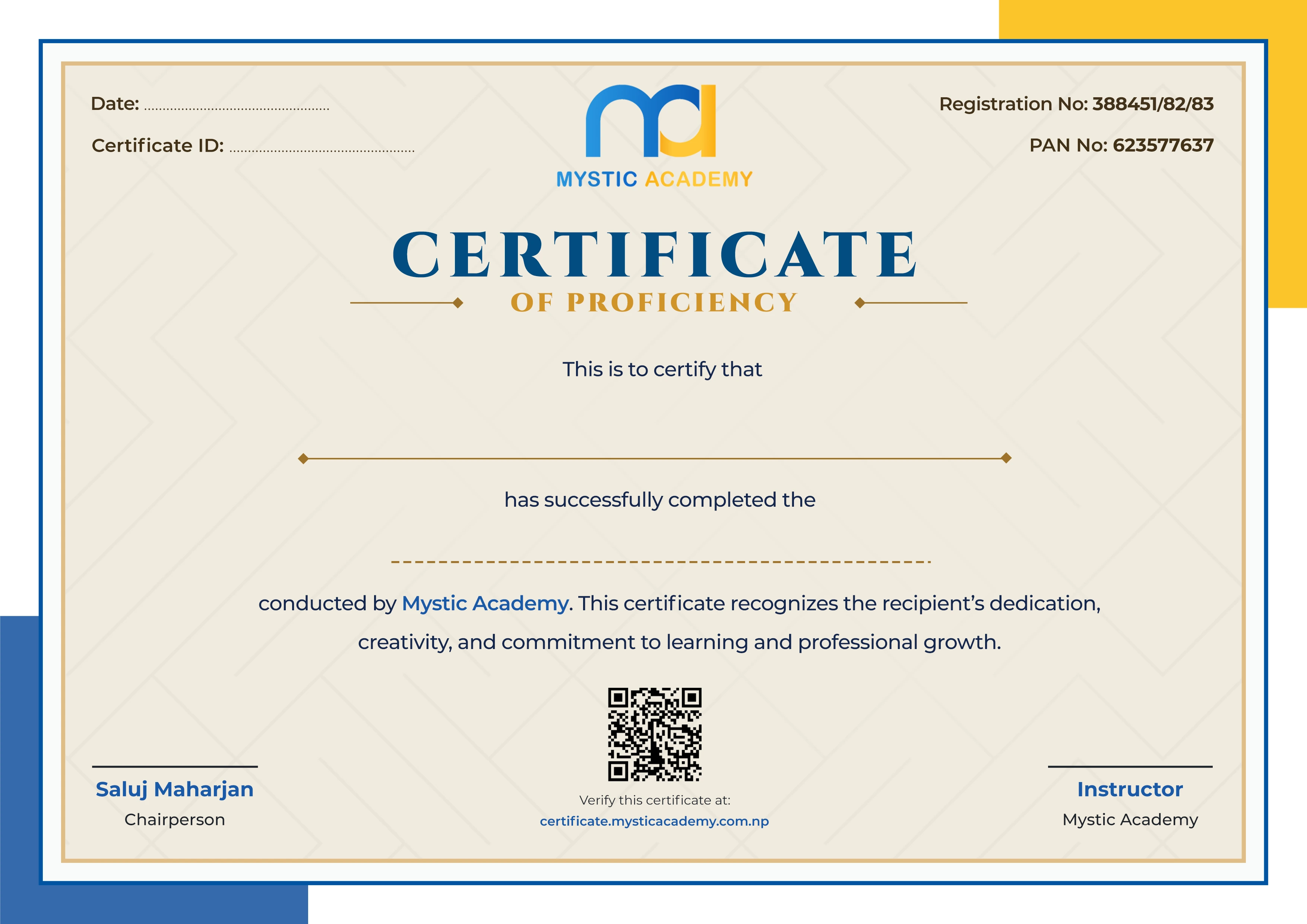
Earn a Certificate on completion
Upgrade your skill and get verified certificates that are recognized by top companies. These certificates help you showcase your expertise and enhance your professional profile.
Already earned a certificate? Verify it here
Similar Courses
Explore other programs that might interest you


Quick Inquiry
Choose Class Schedules :
Notification
Message goes here.